

Video playback
Play video files from your device storage. This is the simplest way when the videos are already saved on the phone or tablet.
Subtitles
Turn built-in and external subtitles on and off during playback. It helps when a video is in another language or the volume has to stay low.
Network sources
Open videos from network drives or media servers. This fits when the collection is stored separately from the device.
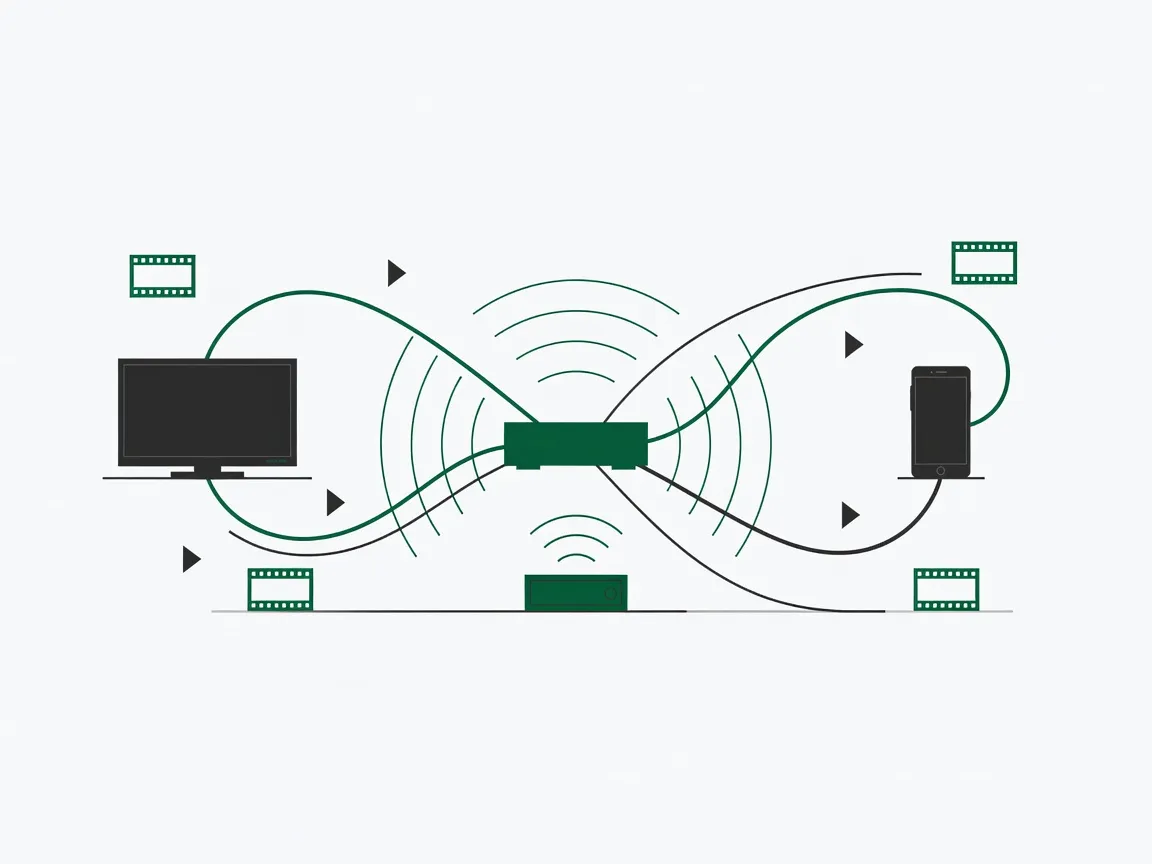
Stream from home storage
Videos play straight from a network drive or media server, without copying files to your device.

Your video library
The built-in library sorts videos by type, date and rating, with descriptions and artwork from TMDB.
How you can use the app
A video on your device
Videos saved in your device storage open directly in the app. Allow access to your media at first launch, pick a file in the library, and press play. All you need is the file on the device.
A video on network storage
Videos can stay where they are, on a network drive or in a shared folder. The app connects over SMB/CIFS or WebDAV and opens the file for playback. The storage just has to be reachable from your device over the network.
A library on a media server
If you run Emby, Jellyfin, Plex or fnOS, add the server in the app and browse its library there. Pick a video on the server and play it without copying files. The server has to be running and accessible from your device.
About the app
The app includes a built-in media library with sorting by type, date and rating, plus tools to rename and delete cloud files.
Formats and playback
The app opens video files directly, in the format and quality they were saved in. Playback in 4K or HDR also depends on the video file itself and on what your device can display. The supported formats are listed in the table.
Subtitles
Subtitles can be stored inside the video file or kept as a separate file next to it. The app plays both kinds, in SRT, SSA and SUB formats, and lets you turn subtitles on or off during playback.
How to start
-
Install the app from Google Play.
The link leads to the app's page in the store.
-
Open the app and allow access to your media.
This lets the app see the videos stored on your device.
-
Add videos from device storage, a network drive, or a media server.
For a network source, the storage must be reachable from your device.
-
Pick a video and press play.
Sorting by type, date or rating helps find a file faster.
FAQ
Which video sources does the app work with?
Device storage, network drives over SMB/CIFS or WebDAV, and media servers such as Emby, Jellyfin, Plex or fnOS.
Which video formats does the app play?
MKV, AVI, MP4, MOV, RMVB, WMV and other common formats, in resolutions up to HD, 4K and HDR.
How do external subtitles work?
An external subtitle is a separate file kept next to the video. The app opens SRT, SSA and SUB files, and subtitles can be turned on or off during playback. Built-in tracks inside the video file work too.
What does network playback require?
The storage or media server has to be reachable from your device over the network. When the source is reachable, videos play straight from it, without copying files to the device.
Where do posters and descriptions come from?
Metadata and artwork are taken from TMDB, a community-maintained database of movies and TV shows.
Where can I ask about a problem?
Write to support@movigo.eu.com. Include your device model, your Android version, and a description of the problem.
Newsletter
Leave your email to hear about updates to VidHub.